 Givata
Scheduling software · Givata's own
Share one link. The meeting books itself.
Givata Book is the scheduling app Givata runs its own calls on. A visitor picks a time that works for both sides. The app checks every calendar you connect, sends the invite, sends the reminders, and updates your CRM. You don't pay a monthly fee for each person on your team.
Built with Next.js and Postgres · booking real calls every day
The trailer
Under a minute, every feature.
The admin side needs a login, so this video is the tour. It shows the real app using made-up sample data.
What it is
The back-and-forth email, done by software.
Setting up a call usually takes three or four emails. Givata Book replaces them with one link. Behind that link, it knows your hours, your calendars, your team, and your rules. So the only times it offers are times that really work. Everything else on this page builds on that idea.
Before
- A monthly fee for every person who takes meetings
- Double bookings when a second calendar wasn't checked
- Reminders that land at 3 AM in the visitor's time zone
- Booking details stuck outside the CRM, typed in by hand
- New leads booked with whoever was free, not whoever fits
After
- One app on the owner's own accounts, with no fee per person
- Every connected calendar is checked before a time is offered
- The morning reminder arrives at 8 AM where the visitor is
- Each booking is written to the CRM on its own
- A short form sends each lead to the right person
What a visitor sees
Pick a time, answer a few questions, done.
The visitor never needs an account. They open your link, see only the times that are really free, and book in under a minute. It works the same way on a phone.
One link lists every meeting you offer.
Each meeting type shows how long it is and where it happens. A visitor picks one, then picks a day. Days with open times are lit up. Times show in the visitor's own time zone, and they can switch it.
- Tap a time, then confirm it, so nobody books by accident
- 12-hour or 24-hour clock, whichever reads better
- The visitor can choose a 20 or 30 minute call, if you allow it
- Your cancellation policy is shown before they book
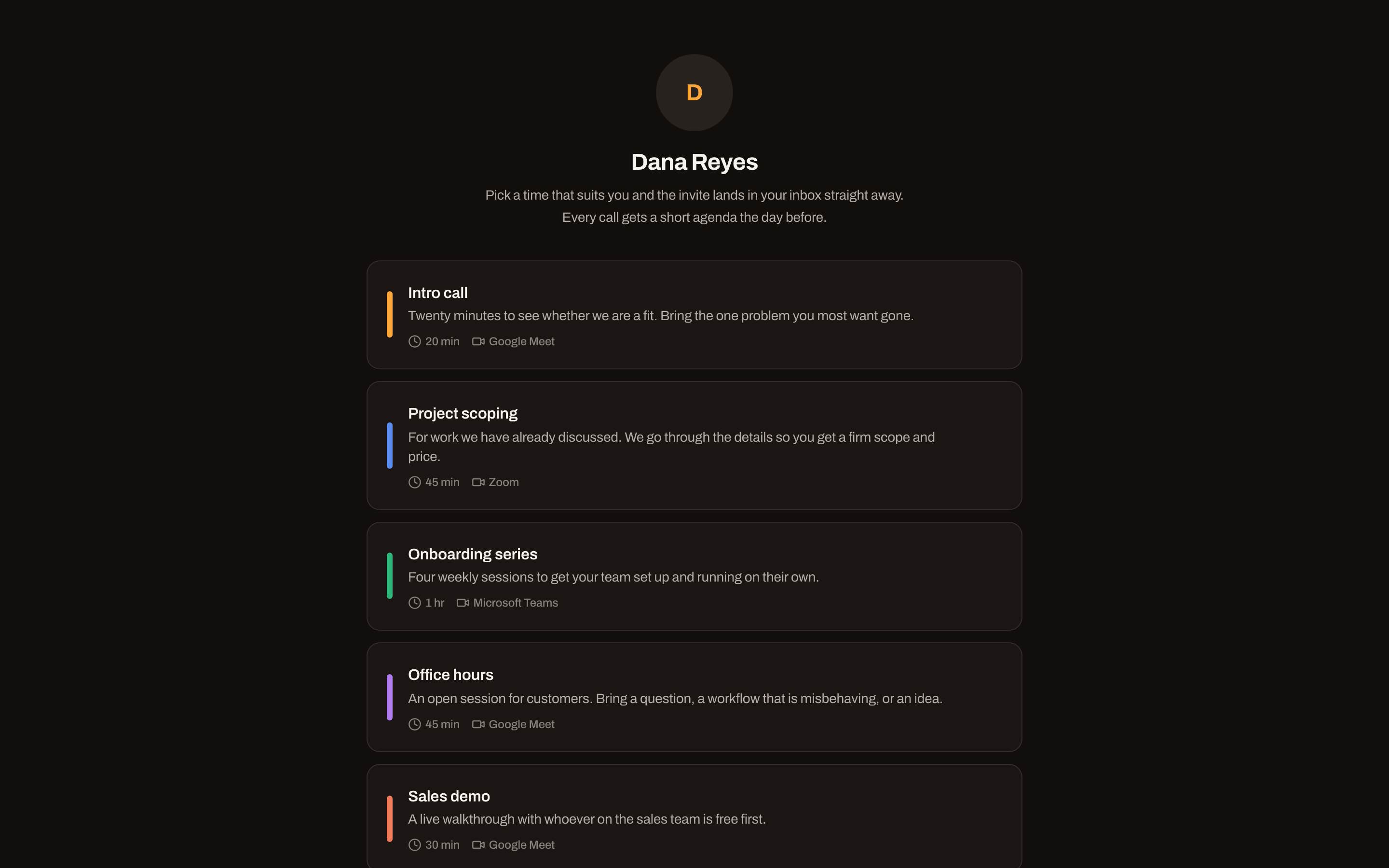
A sample host's booking page. Every name here is made up.
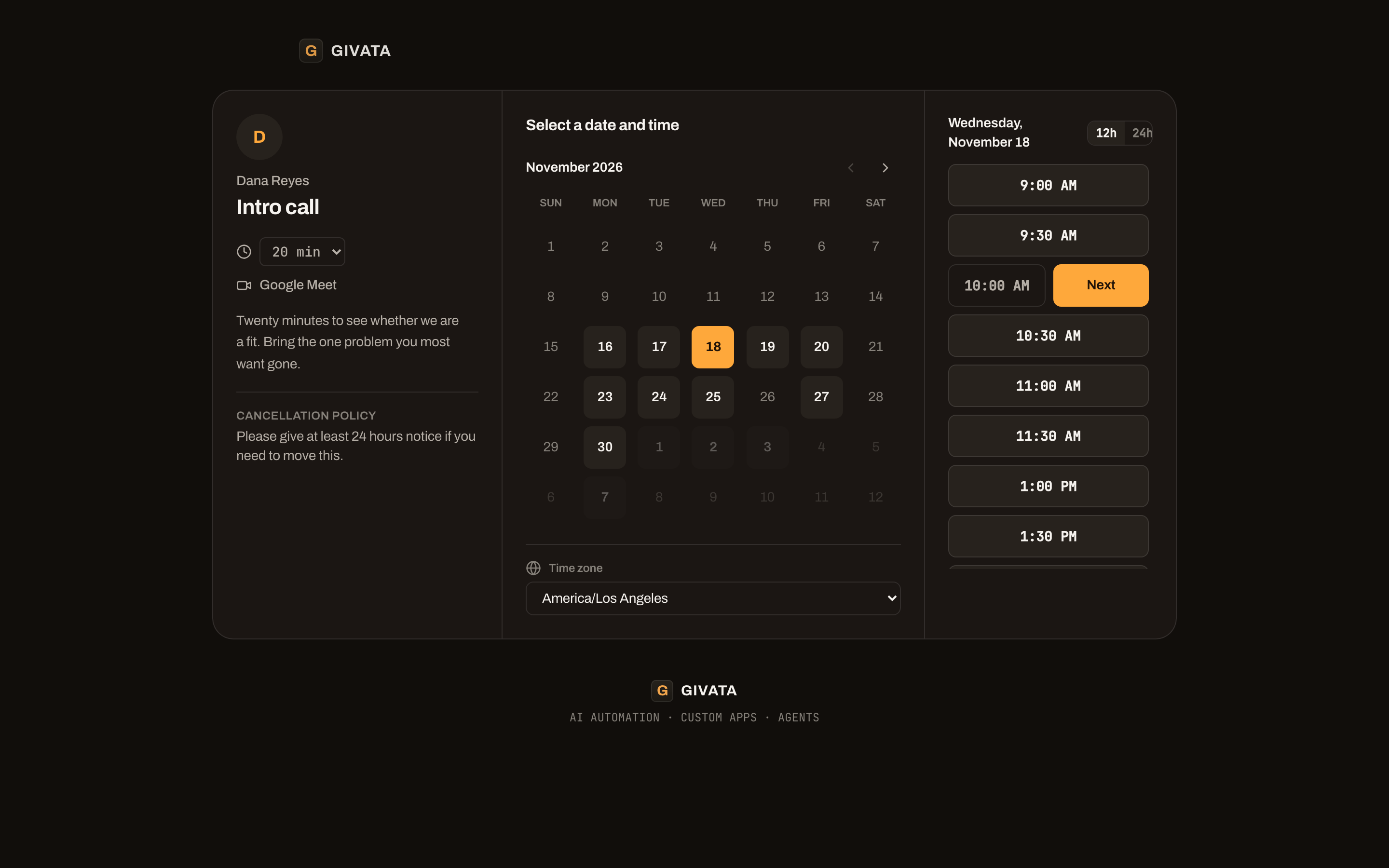
Only free times are offered. Pick one and a Next button appears.
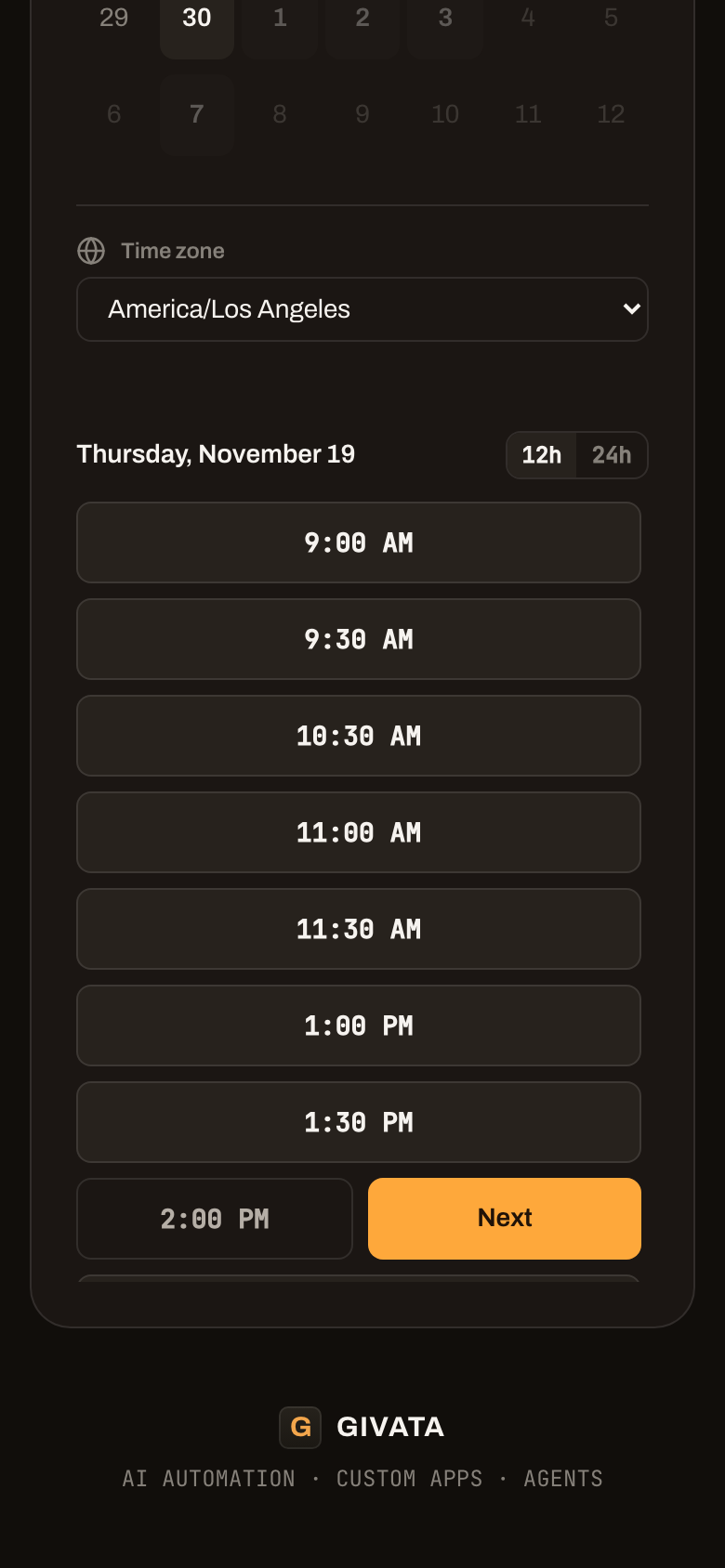
The same steps on a phone.
Ask your questions before the call, not during it.
Each meeting type can ask up to ten questions. Ask for a company name, a topic, a phone number, or anything else. A question can show up only when an earlier answer calls for it. The visitor can also add colleagues to the invite.
Then they see a clear confirmation, and the invite lands in their inbox. Their email has links to reschedule or cancel on their own, and the app asks why.
- Ten answer types: text, dropdown, checkboxes, phone, date, number and more
- Questions that appear only when they apply
- Links can fill in the name and email ahead of time
- Ad and email tracking tags are kept with the booking
- Visitors reschedule or cancel on their own, up to a cut-off you set
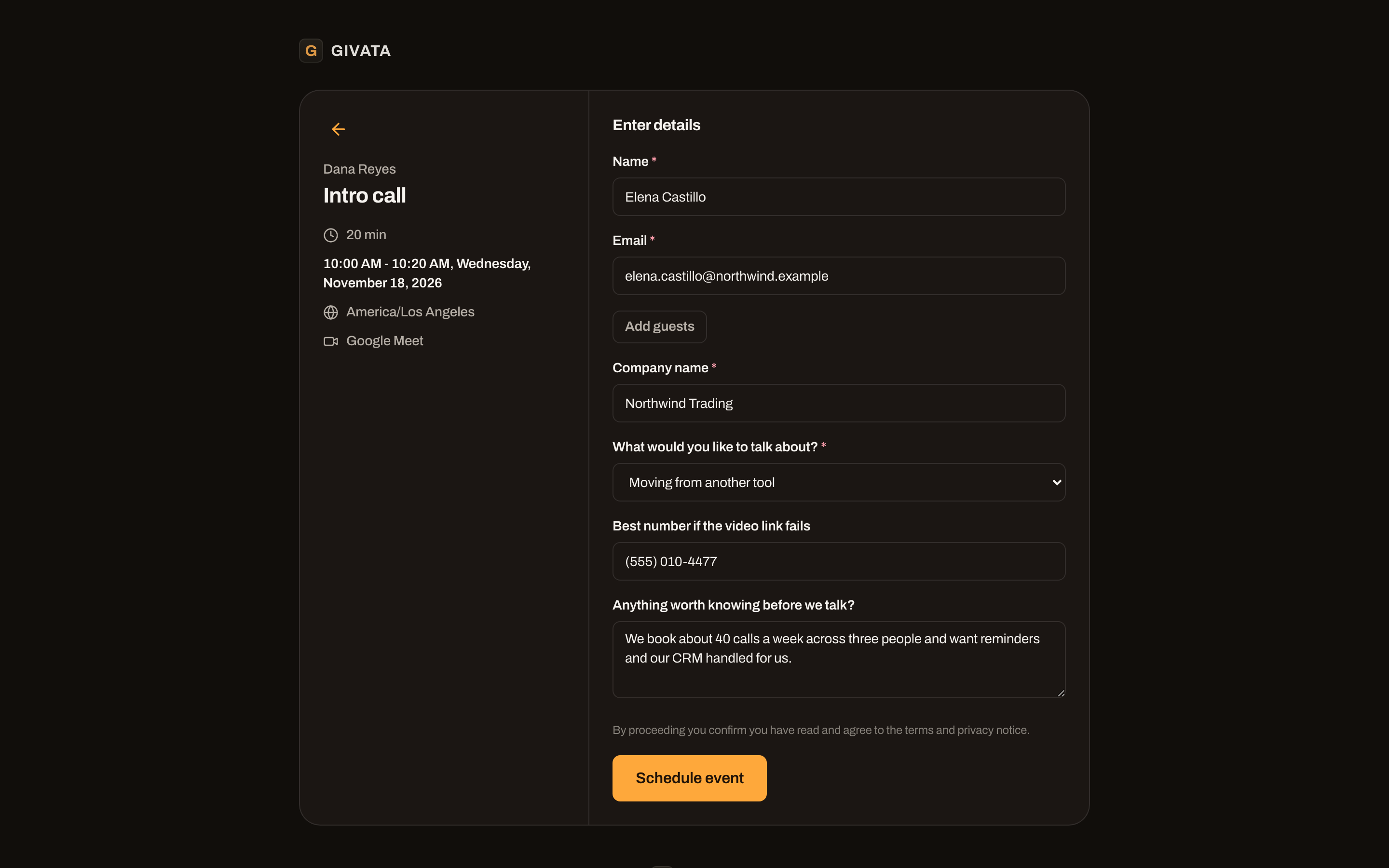
The questions the owner chose, answered by a sample visitor.
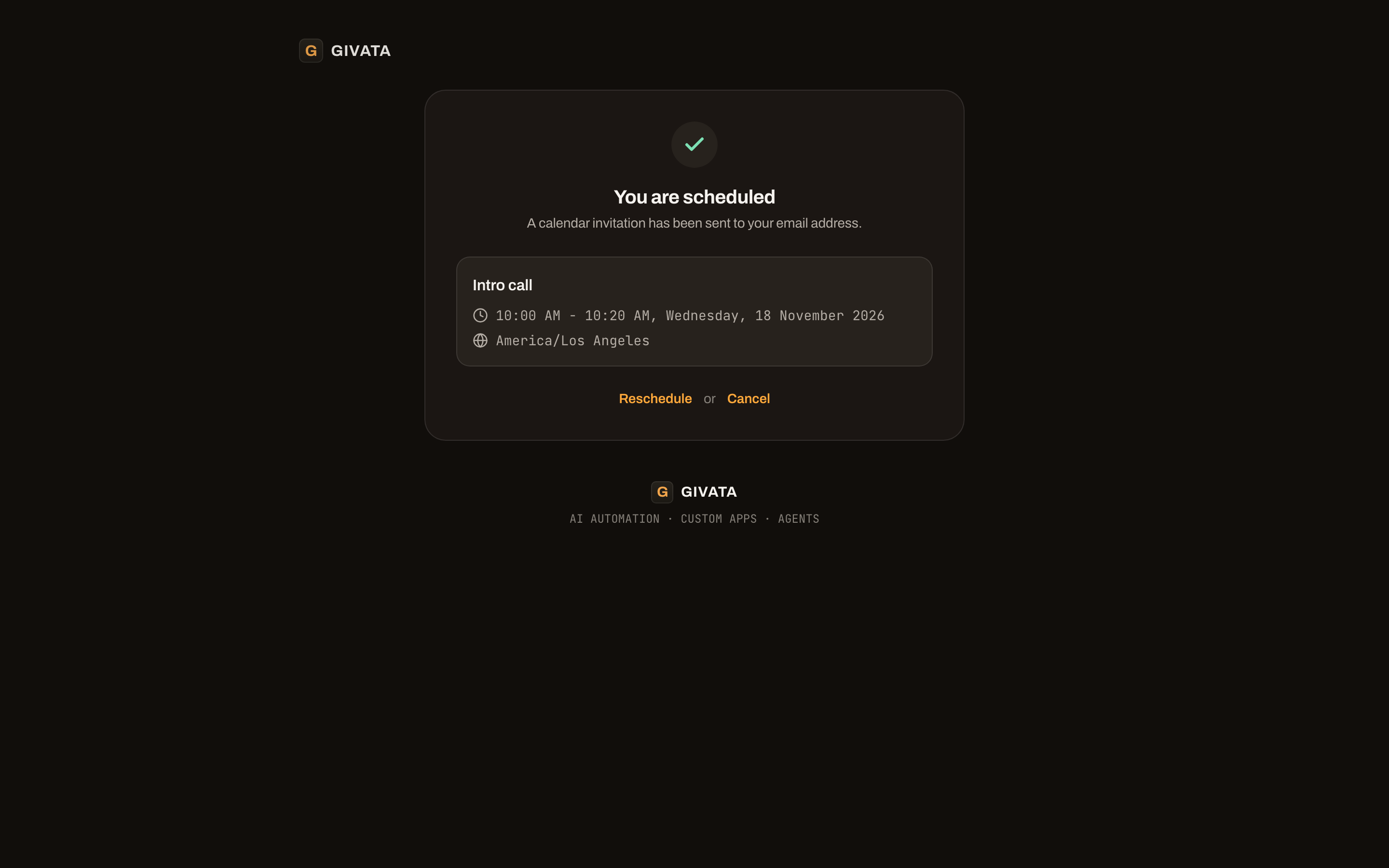
Booked. The invite is already on its way.
Meeting types and rules
Every kind of meeting, each with its own link.
An intro call, a project review, a group workshop, a sales demo spread across the team. Each one is a meeting type with its own link, length, place, questions, and rules.
one-on-one
One host, one visitorThe classic call.
group
One time, many seatsShows how many seats are left.
round robin
Shared across the teamBy who's free, or evenly.
collective
Everyone must be freeOnly times when all hosts are open.
repeating
A set of sessionsFour weekly calls, booked in one go.
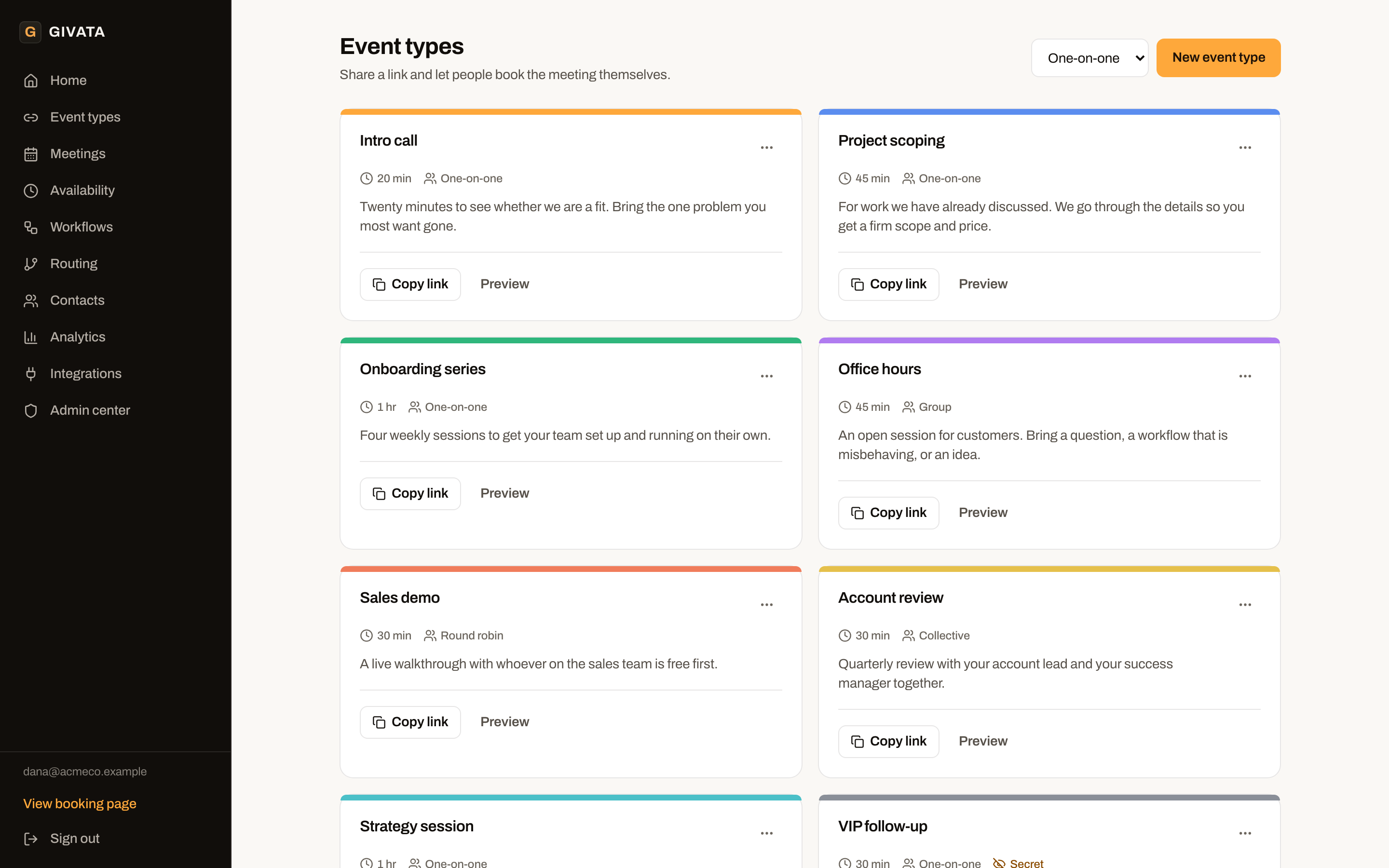
Sample meeting types. One is a hidden link only for existing clients.
Rules that protect your day.
Decide how far ahead people can book and how much notice you need. Add a break before and after each call. Cap how many of one meeting type you take each day, week, or month.
A repeating set only books if every date in it is free. So a visitor never ends up with three sessions out of four.
- Booking window, start times, and minimum notice
- Breaks before and after each call
- Daily, weekly, and monthly limits
- Hidden links and single-use links
- Take payment at booking, with the time held while they pay
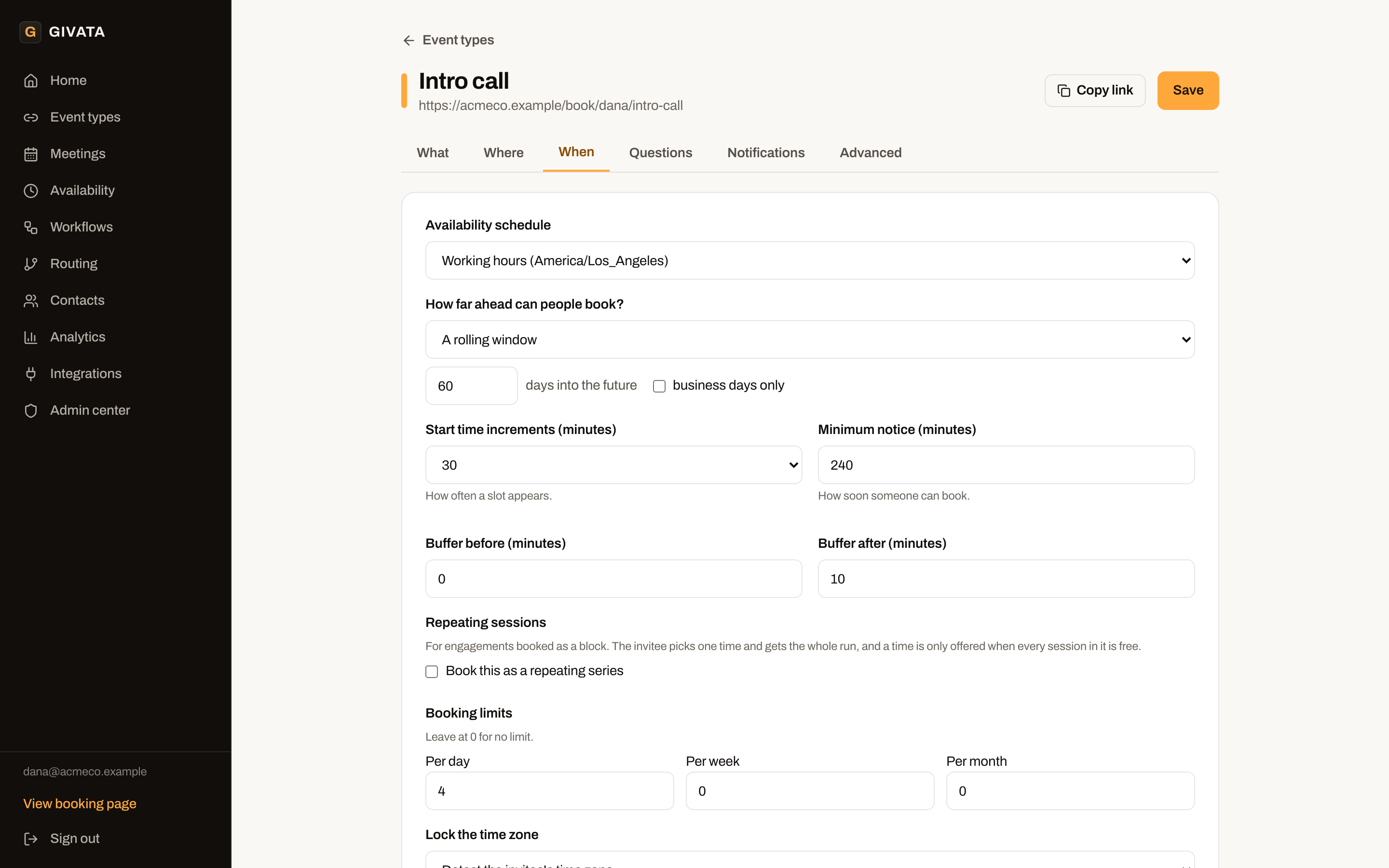
The rules for one meeting type.
Availability
Your hours, your holidays, your time off.
Weekly hours cover your normal routine. Holidays, days off, and travel cover everything else. The app keeps them all in mind before it offers a time.
Set it once, then handle the exceptions.
Your hours can have a lunch break in the middle. You can keep more than one schedule, like normal hours and a shorter set just for client calls. Change the hours on a single date without touching the rest.
Traveling? Keep your same hours, and the app reads them in the city you're in.
- Split shifts, so lunch stays free
- Several named schedules side by side
- Public holidays for the US, UK, Canada, and Australia
- Your own blocked dates, including ones that repeat each year
- Time off and travel, by date range
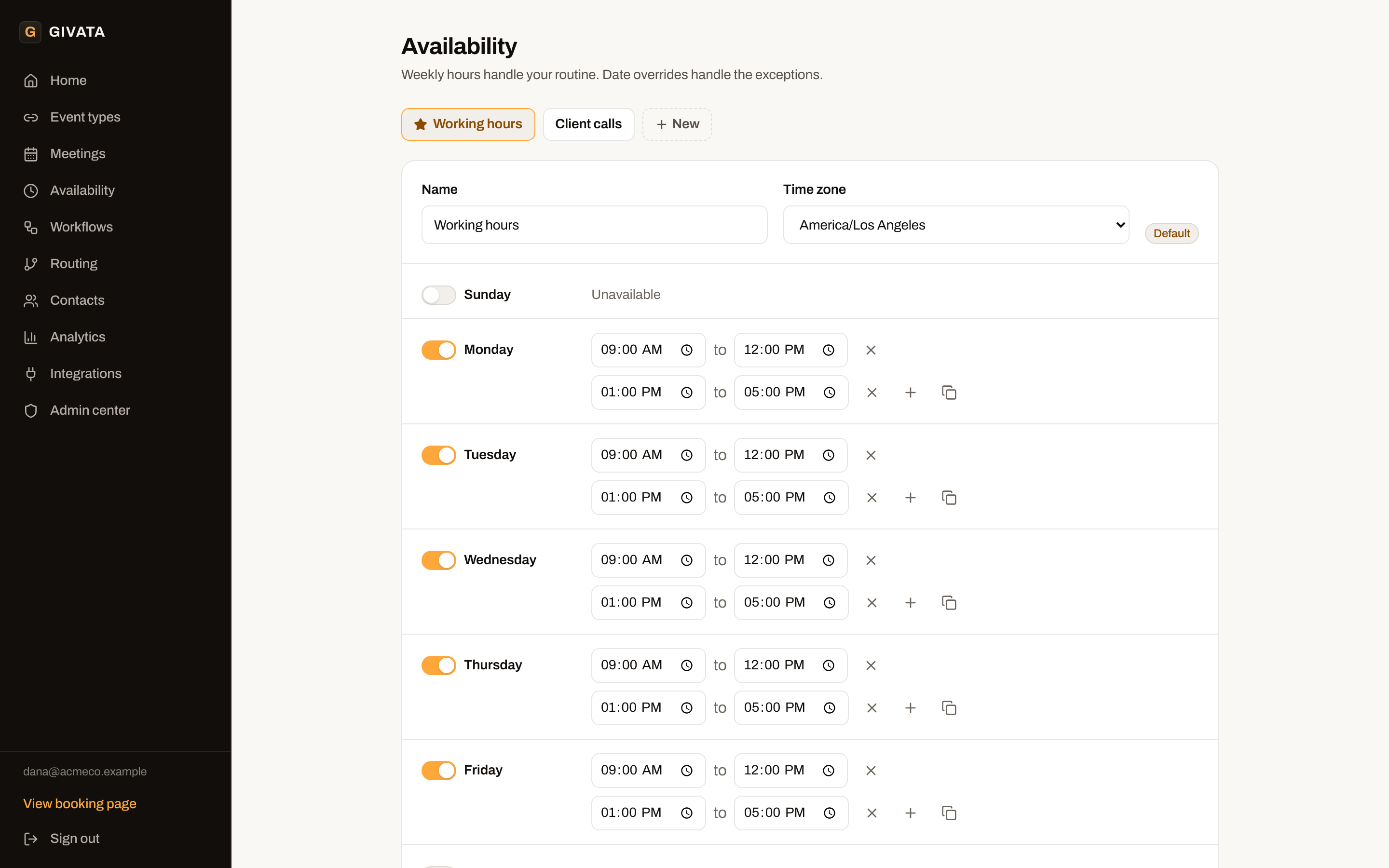
Weekly hours with a lunch break, and a second schedule.
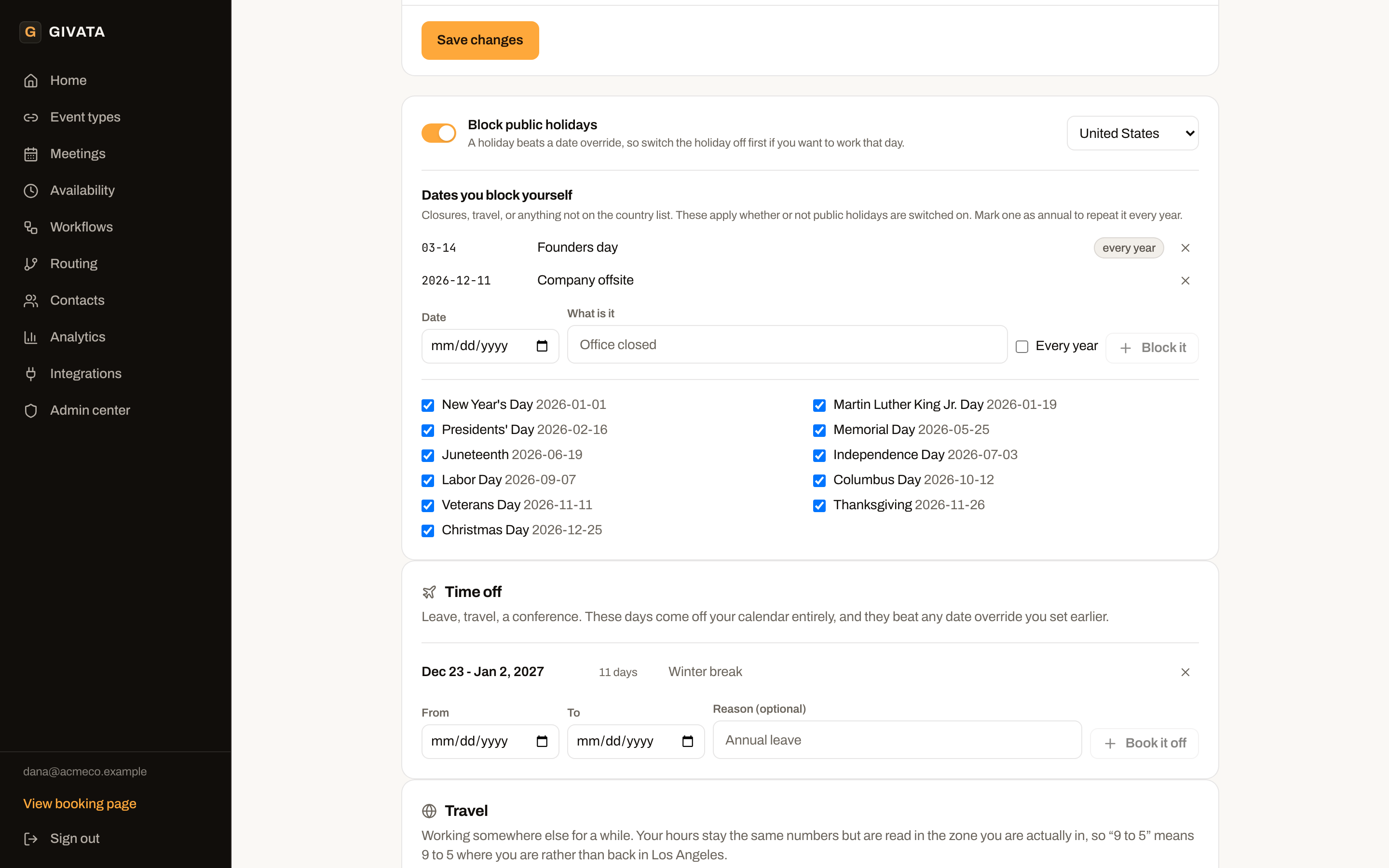
Holidays, blocked dates, and time off.
Calendars and video
Every calendar is checked. You choose which ones count.
Connect as many calendar accounts as you like: work, personal, a partner's. Each calendar inside an account has its own switch. So a shared team calendar doesn't block your day unless you want it to.
Fine control, and it fails safe.
Choose which calendar new bookings are written to. Decide if tentative events, all-day events, or events you turned down should count as busy. Ignore events by name, like anything called "Focus" or "Hold."
If a calendar stops syncing, its last known busy times keep blocking. So a sync problem can't open up your whole week by mistake.
- Google and Microsoft calendars
- Calendar feed links for Apple and others
- A newly shared calendar waits for you to switch it on
- Video links made for you: Google Meet, Teams, Zoom, or Jitsi
- Or meet in person, by phone, or let the visitor choose
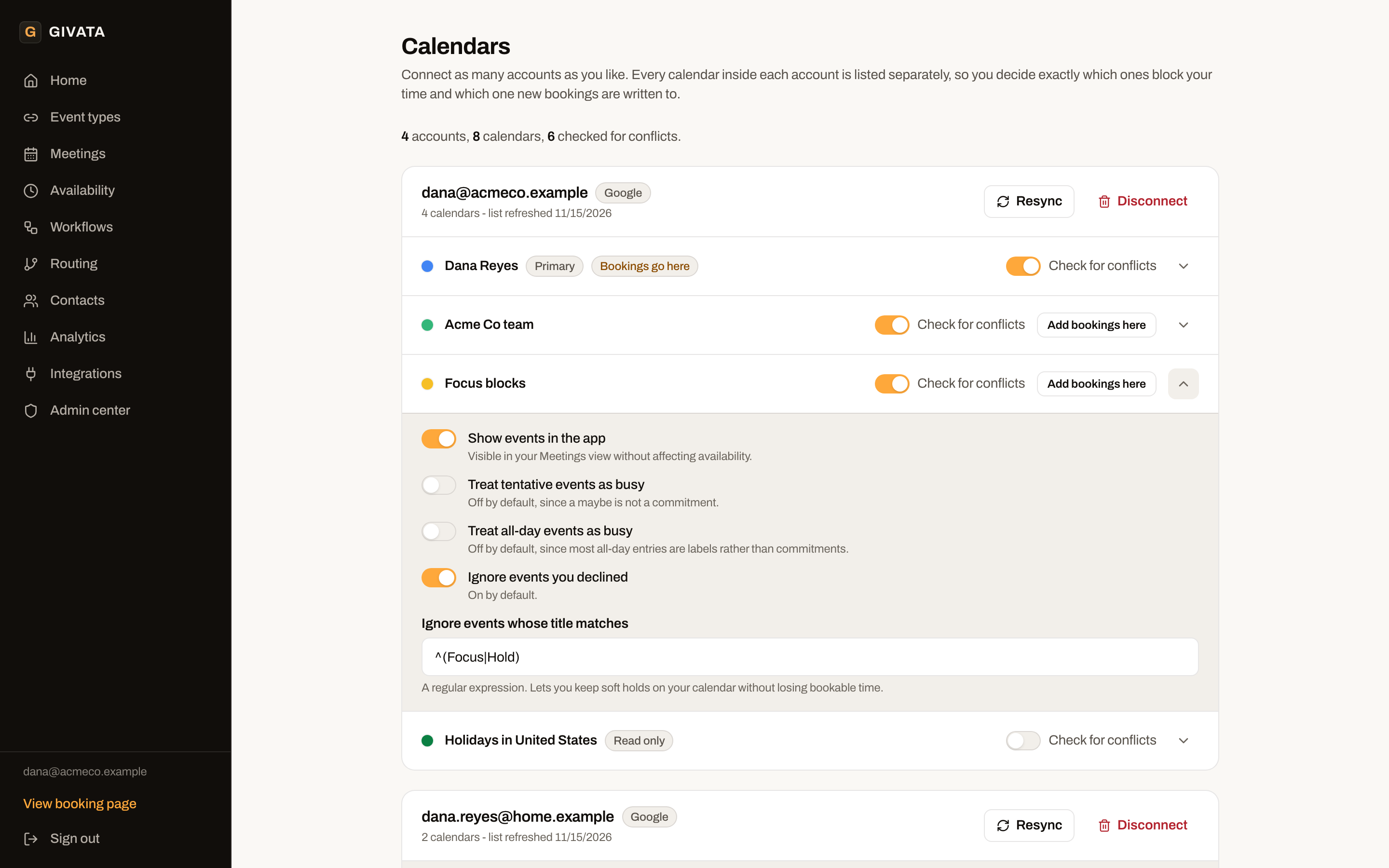
Four sample accounts, with one calendar's rules opened.
Reminders and follow-ups
Fewer no-shows, without anyone remembering to send a note.
Every booking gets three reminders, sent to everyone on the invite. One the day before, one at 8 AM on the day in the visitor's own time, and one 15 minutes before. A thank-you follows an hour after the call.
Build your own steps, too.
A workflow is a list of "when this happens, do that" steps. Start one when a meeting is booked, before or after it, or when it's cancelled, moved, or missed. Send an email or a text, ask the visitor to confirm, update the CRM, or alert the team.
Every message is written to the log as sent, skipped, or failed, and failed ones are tried again. So a reminder can't quietly go missing.
- Seven starting points, from "booked" to "no-show"
- Emails and texts with the name, time, and links filled in
- Ask visitors to confirm they're still coming
- Apply a workflow to all meeting types or just some
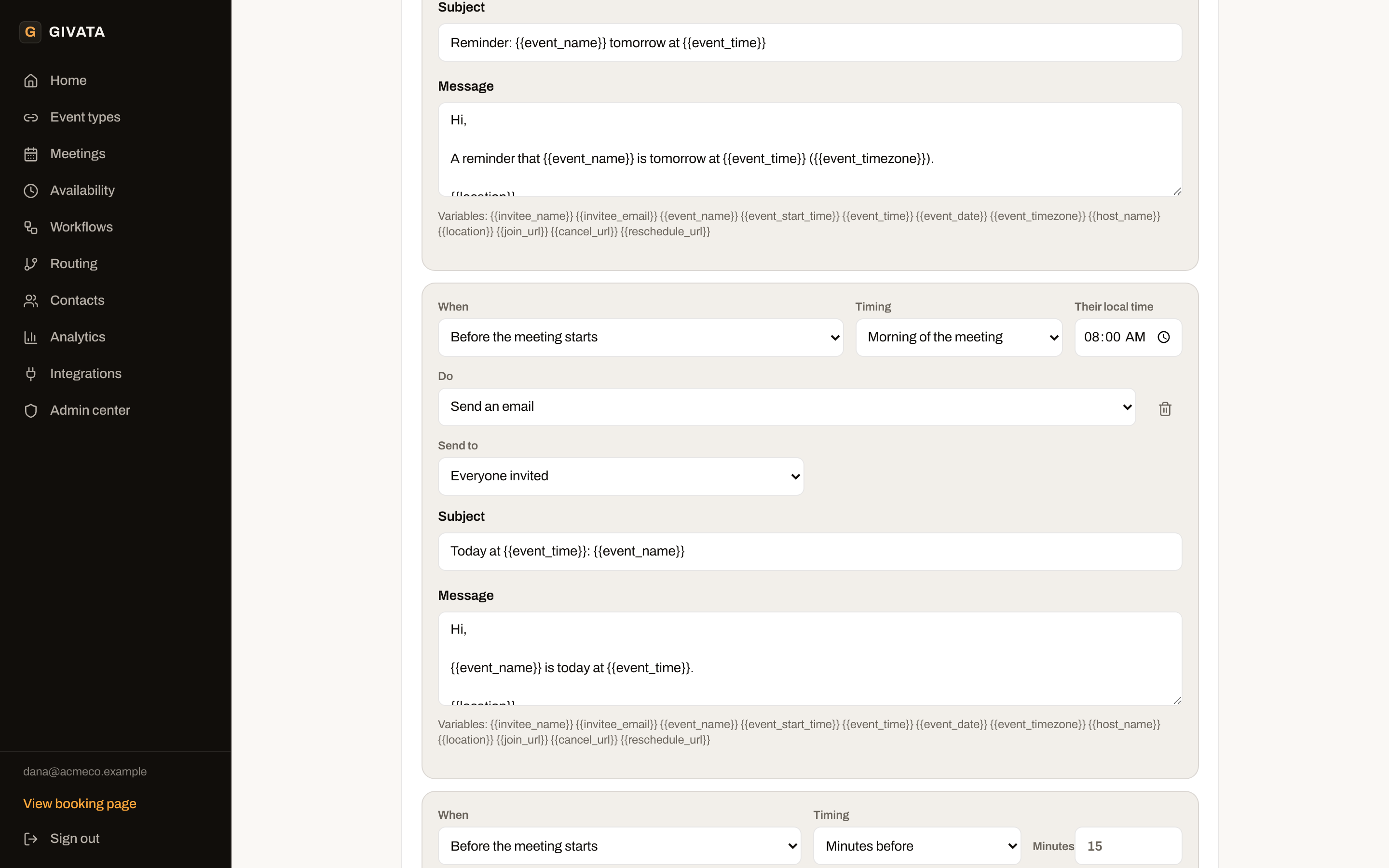
The reminder steps every booking gets.
Routing
Ask a few questions first, then send them to the right place.
A routing form is a short set of questions before the calendar. Based on the answers, the visitor goes to the right booking page, sees a message, or goes to another web page. The first rule that matches wins.
Existing clients go to the person they know.
If the visitor is already a contact in your CRM, the app can book them with whoever already looks after them. New leads can be sorted by team size, topic, or anything else you ask.
Each answer is saved, so you can see where every person was sent.
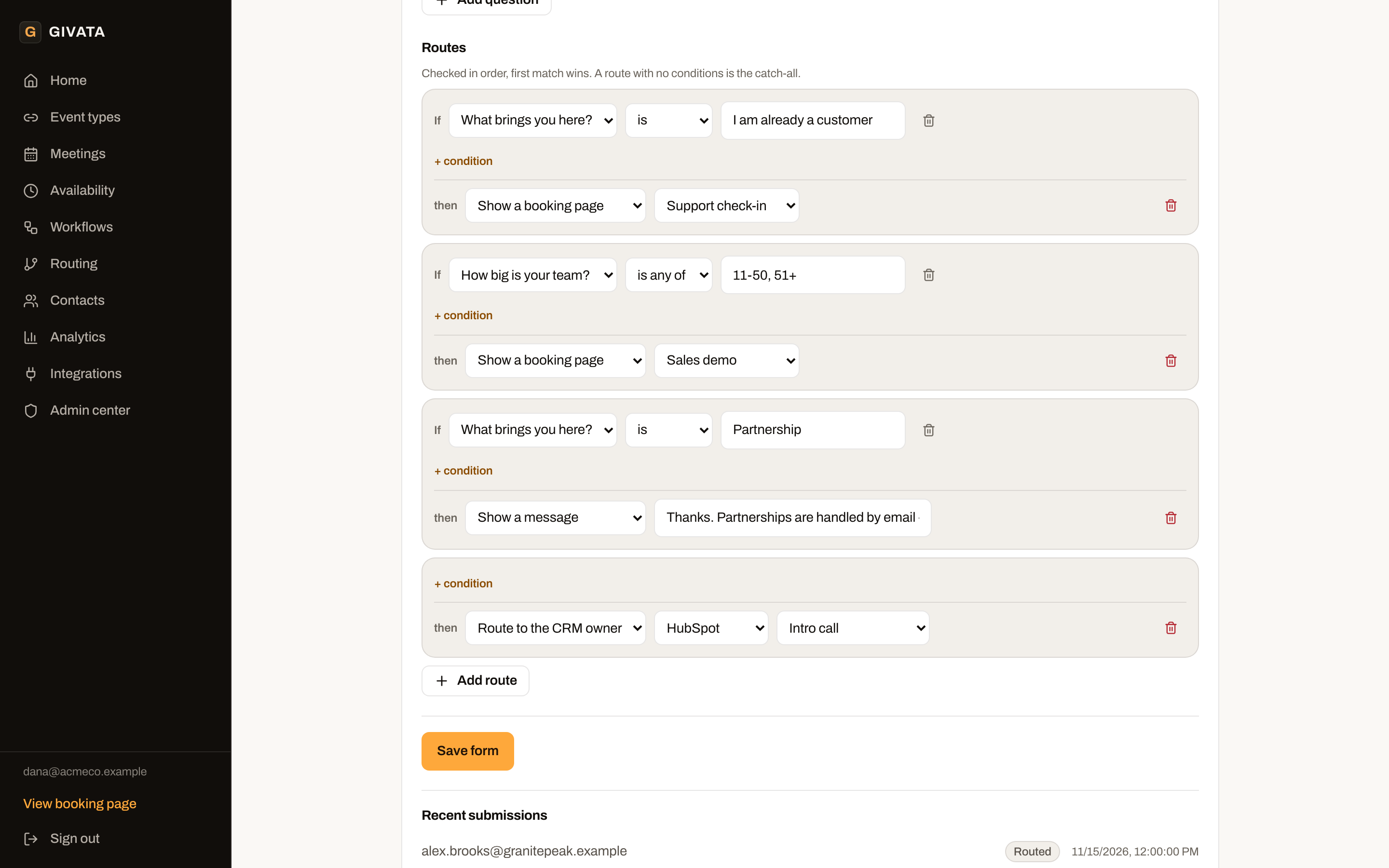
Four sample rules, including one that books with the CRM owner.
Meetings and numbers
Everything about every meeting, in one place.
The home screen shows what's next. The meetings list shows the answers each visitor gave, so you walk into every call ready. Every visitor also becomes a contact with their full meeting history.
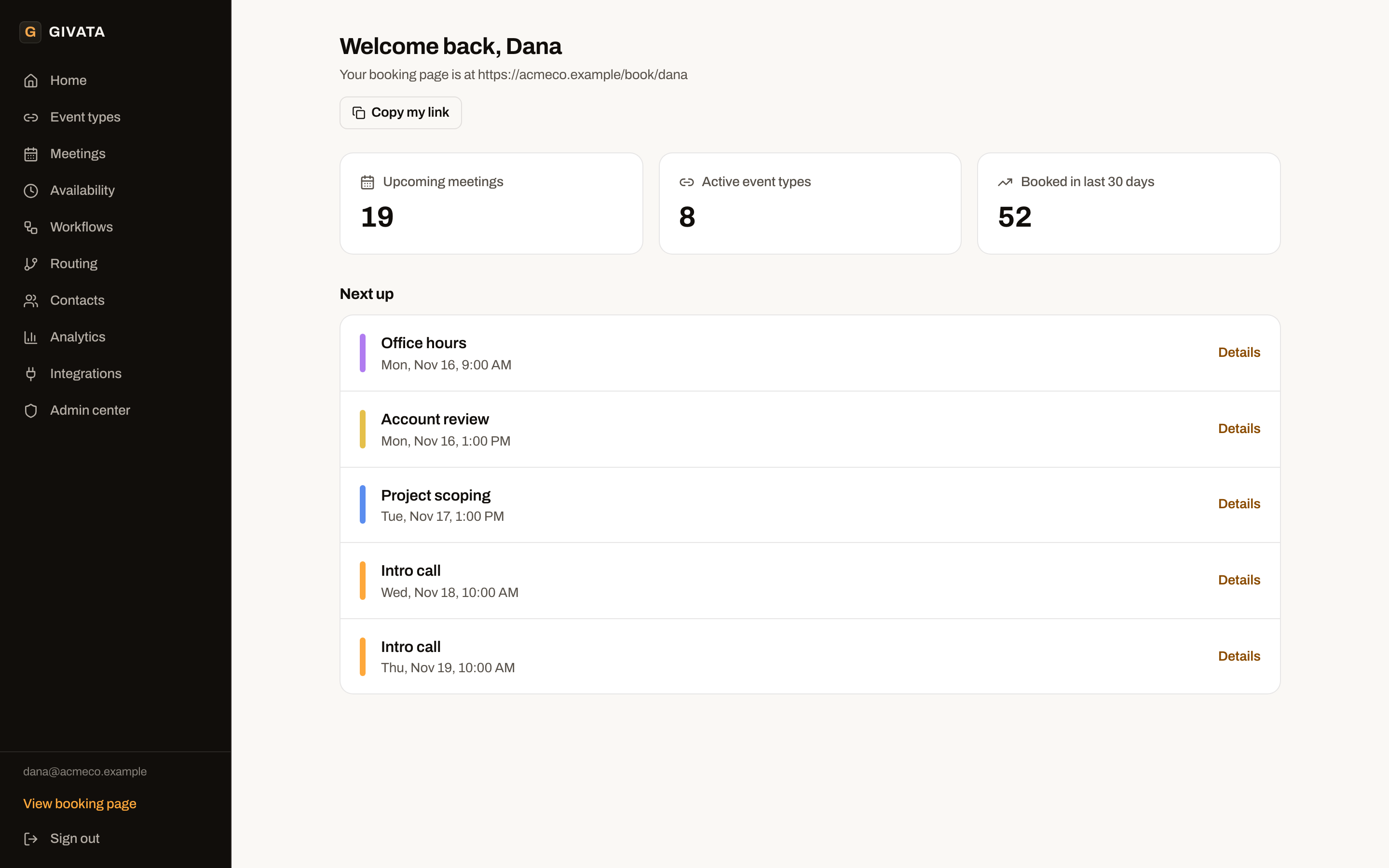
The home screen: what's next, at a glance.
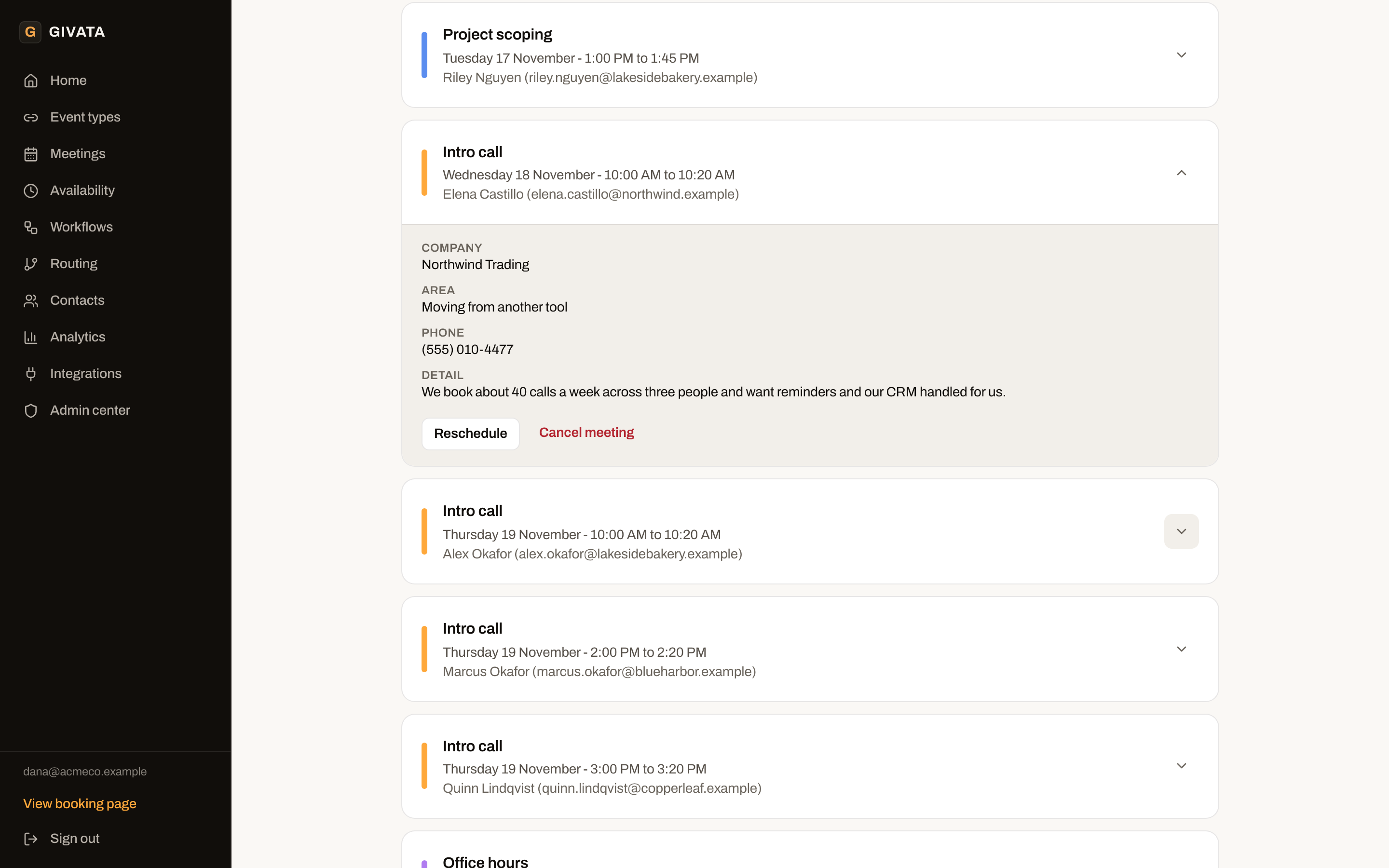
A meeting opened to show the visitor's answers.
Know which links and hours do the work.
See how many meetings were booked, held, cancelled, moved, or missed. See which meeting types are most popular, which hours people pick, and who on the team is taking the calls. Export any of it to a spreadsheet.
- Reschedule or cancel from your side, and both sides are told
- Mark a no-show, which can start a follow-up
- Last 7, 30, or 90 days, or the past year
- Download the numbers as a CSV file
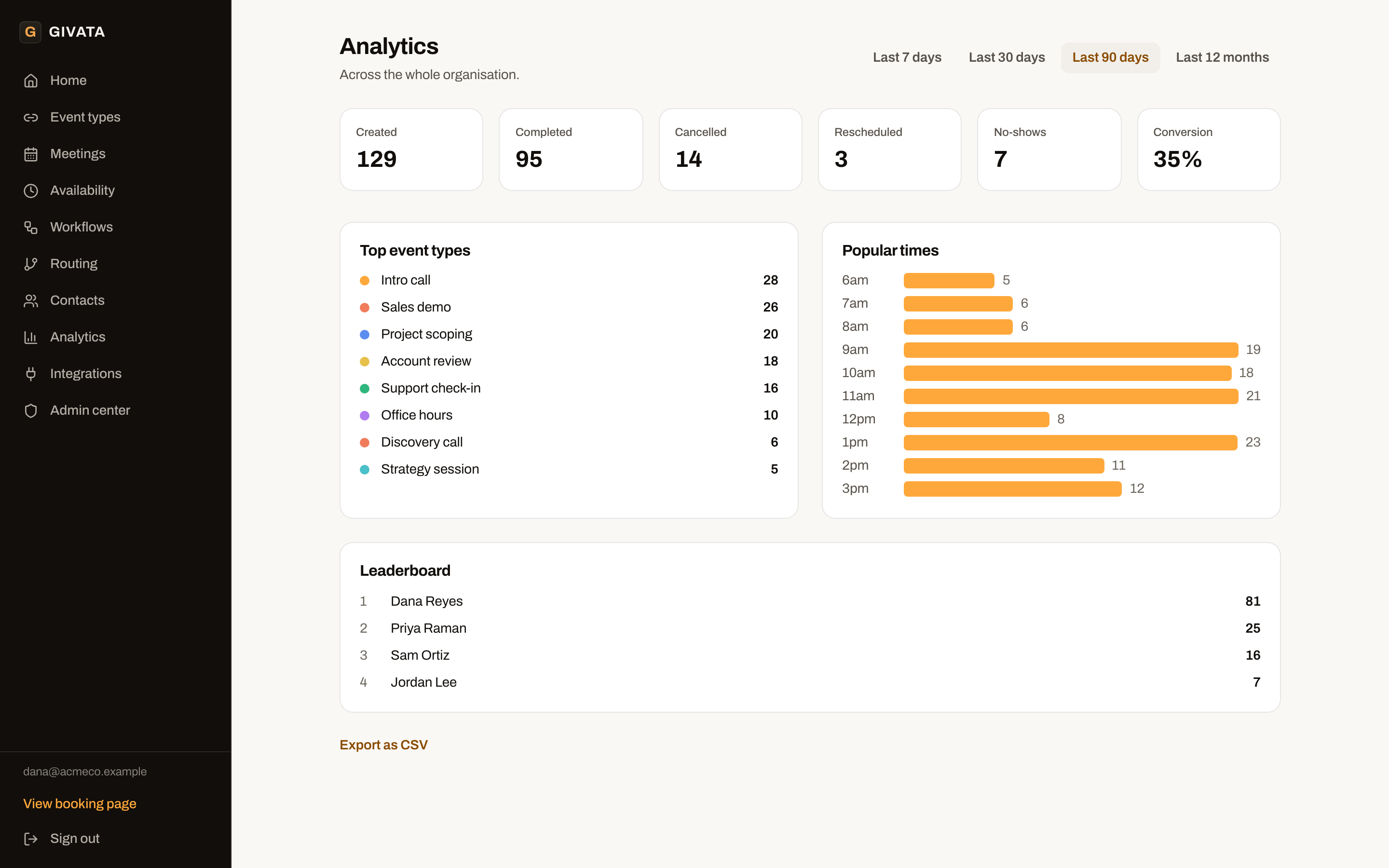
Ninety days of sample bookings.
Connections
It talks to the tools you already use.
Bookings flow into your CRM on their own. Other tools can hear about every booking as it happens, or read and write bookings through the app's own API.
GoHighLevel, built in
Busy times, appointments, owner routing, workflows, and deals, with no tool in the middle.
HubSpot and Salesforce
Each meeting is logged on the contact, and leads can be routed by owner.
Signed messages to other tools
Every booking event is sent to the tools you choose. Each message is signed, and failed ones are sent again.
Ready-made n8n workflows
Import one and it works, with logging already built in.
An API with limited keys
Your own code can read and write bookings, open times, and meeting types. Each key can be cancelled on its own.
Zoom, Meet, Teams, and Jitsi
The video link is made when the meeting is booked.
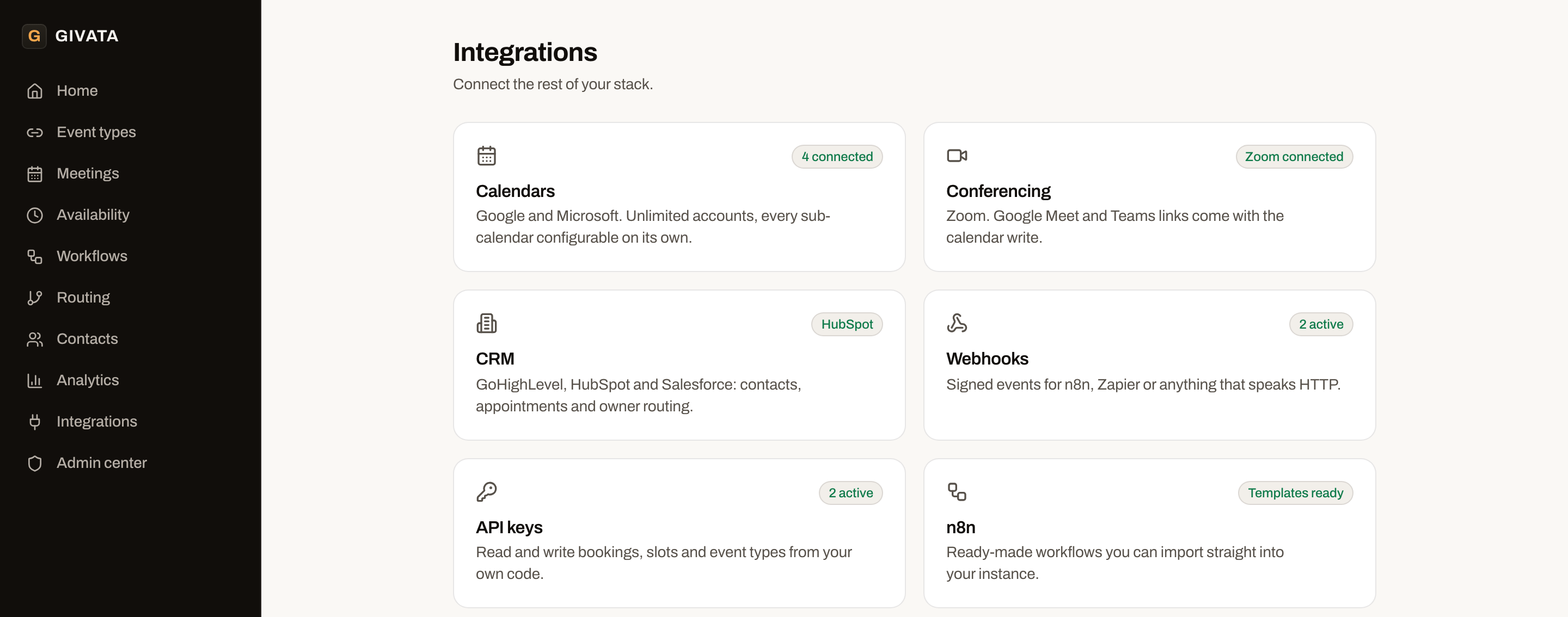
The connections screen.
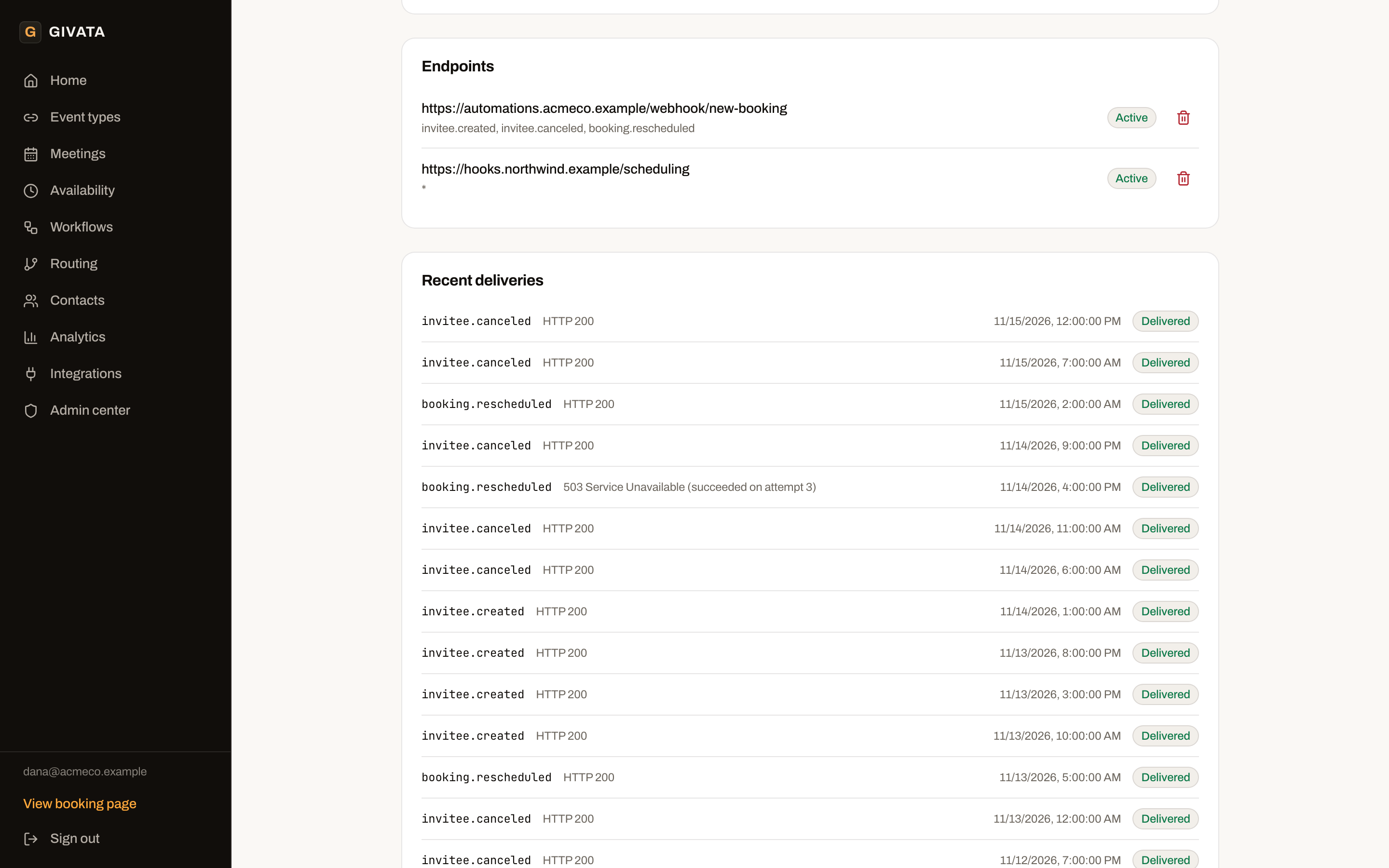
Every message to another tool is logged. One here worked on the third try.
Team and admin
Ready for a whole company, not one calendar.
Add people, give them roles, and group them into teams. Lock the company's look so every booking page matches. Let the company's own login system sign people in, and remove people who leave.
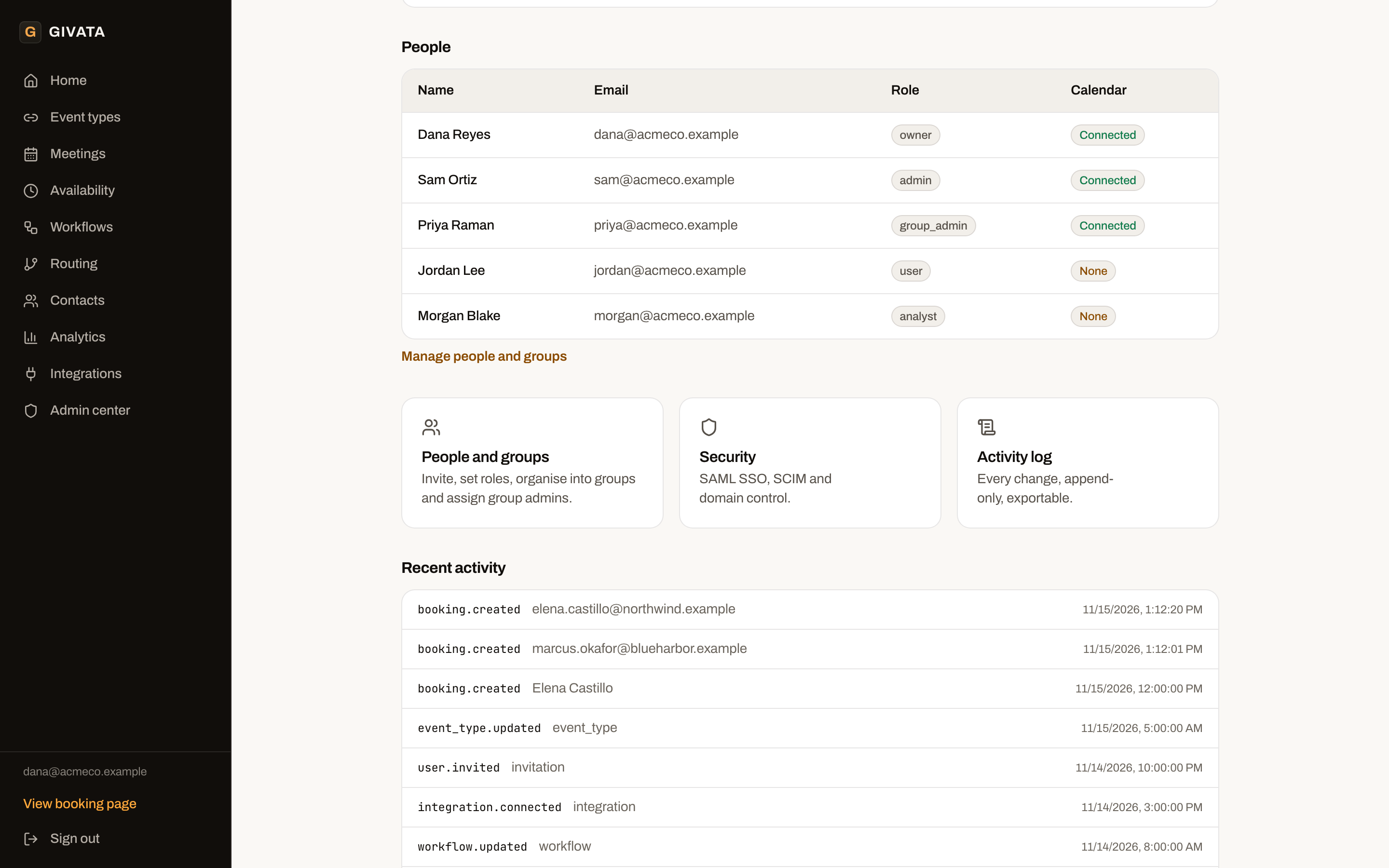
People, roles, and the activity log.
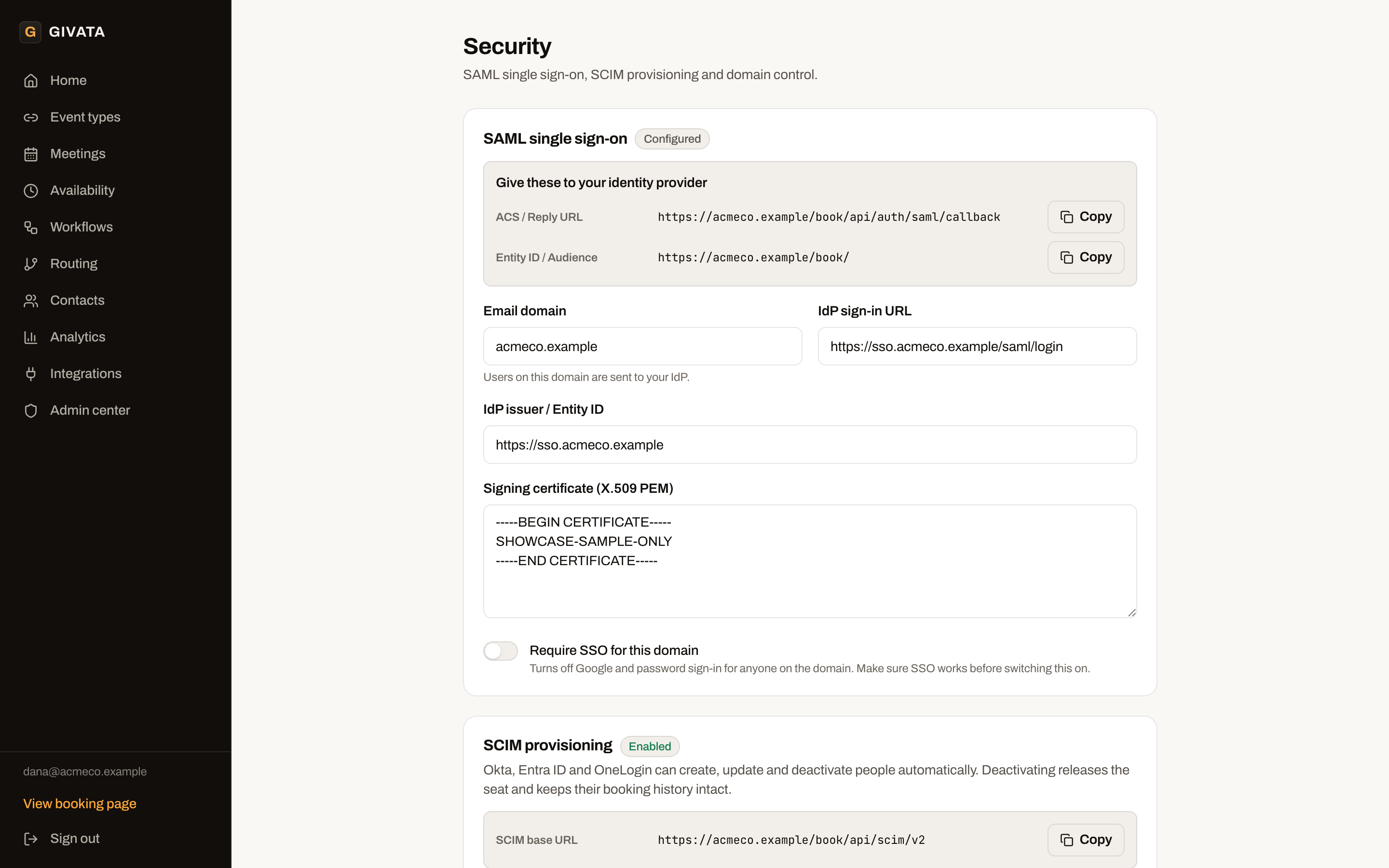
Company sign-in and automatic account setup.
Five roles
Owner, admin, group admin, member, and a read-only role for someone who only needs the numbers.
Company sign-in
Works with the company's own login system, so people are added and removed in one place.
Domain control
Stop stray sign-ups that use the company's email domain.
Visitor data cleared on a schedule
Visitor details can be removed after a set number of days. Delete requests are honored, and a record is kept.
A log nobody can edit
Every change and every sign-in is added to a log that can only grow. Export it any time.
Invites that expire
See who hasn't accepted yet. Old invites stop working on their own.
Everything else in the box
The rest of what it does.
Meeting polls
Offer a few times, let a group vote, then book the winner.
Put it on your own website
Paste one snippet and the booking page shows inside your site.
Your own branding
Your colors and logo on every booking page, and you can remove the "powered by" line.
A thank-you page of your own
After booking, send visitors to your own page, with their details passed along.
Private notes
Leave a note on a meeting type that only your team can see.
Contact history
Every visitor's past and upcoming meetings, on one page.
How it was built
The hard part is time, so time got the most tests.
A scheduling app looks simple until two people grab the same time, or a clock changes for daylight saving. Those are the cases this app was built and tested around.
Never double-booked
In a test, eight people tried to book the same time at once. One got it. The other seven got a clear message to pick another time.
Daylight saving, handled
Clock changes in both halves of the world are covered by tests, so a 9 AM call stays at 9 AM.
149 automatic tests
The scheduling rules, time zones, and limits are tested every time the code changes.
No silent failures
Email has backup paths. A reminder that can't be sent is logged as an error, never as a success.
On the owner's own accounts
The app and its database run in the owner's own cloud accounts. There's no fee per person on the team.
Built in four planned stages
Each stage was planned on paper first, and reviewed before the next one started.
Built with: Next.js and TypeScript, a Postgres database, Google and Microsoft calendar connections, and a scheduled job every 15 minutes for calendar sync and reminders.
Paying every month for software you could own?
Scheduling is one example. If your team pays per person for a tool that does one job, it's worth an hour to see what owning it would look like.
Book a call with DavidThat button opens Givata Book.